Your screens should serve your church, not the other way around

You've got lobby TVs showing stale announcements, classrooms with no good way to present curriculum, and a Sunday morning routine that depends on someone remembering to press the right buttons. DisplayCache handles all of it — digital signage, presenter slides, scheduled live streams, and an on-demand video library — on one platform, on hardware you already own. And it keeps working when the Wi-Fi doesn't.

Affordable digital signage, launching soon. $10 per display per month. Every feature, every integration, no tiers.
 Apple TV, iPad & Mac 🤌 Raspberry Pi & Intel NUC 🔌 TRMNL E-Ink Android TV & Tablets (Q3 2026) 🔥 Amazon Fire TV Stick 4K Max

Not sure which fits your setup? Compare devices side-by-side →

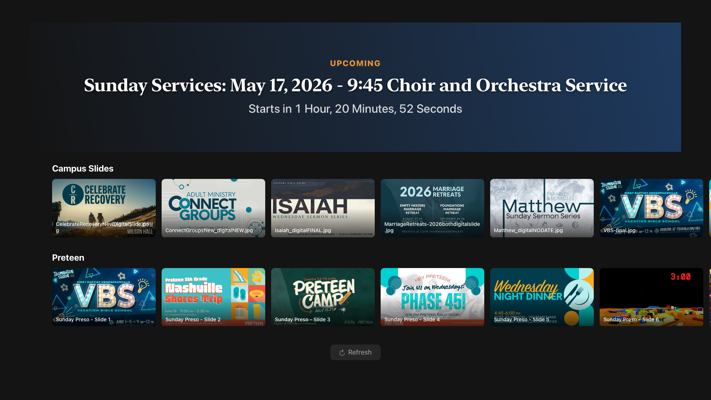
DisplayCache running on a TV with a Netflix-style content browse view

What Sunday looks like when nobody has to babysit the screens

This is a real Sunday morning. Not a demo. Not a "what if." This is what DisplayCache does every week without anyone thinking about it.

7:00 AM

The building opens

Lobby screens are already running. They cached last night's playlist update overnight. This week's announcement slides, the sermon series artwork your office manager uploaded from Canva on Thursday, today's birthdays pulled from TouchPoint, and the weather. All live, all current. Nobody turned anything on. Nobody logged in.

9:15 AM

The hallway screen outside the fellowship hall

It's showing today's room schedule, pulled automatically from eSPACE. The screen outside the youth room shows youth events only. The screen in the main lobby shows everything. Each one filtered to its own location. You set this up once.

9:45 AM

Backstage, the green room screen updates

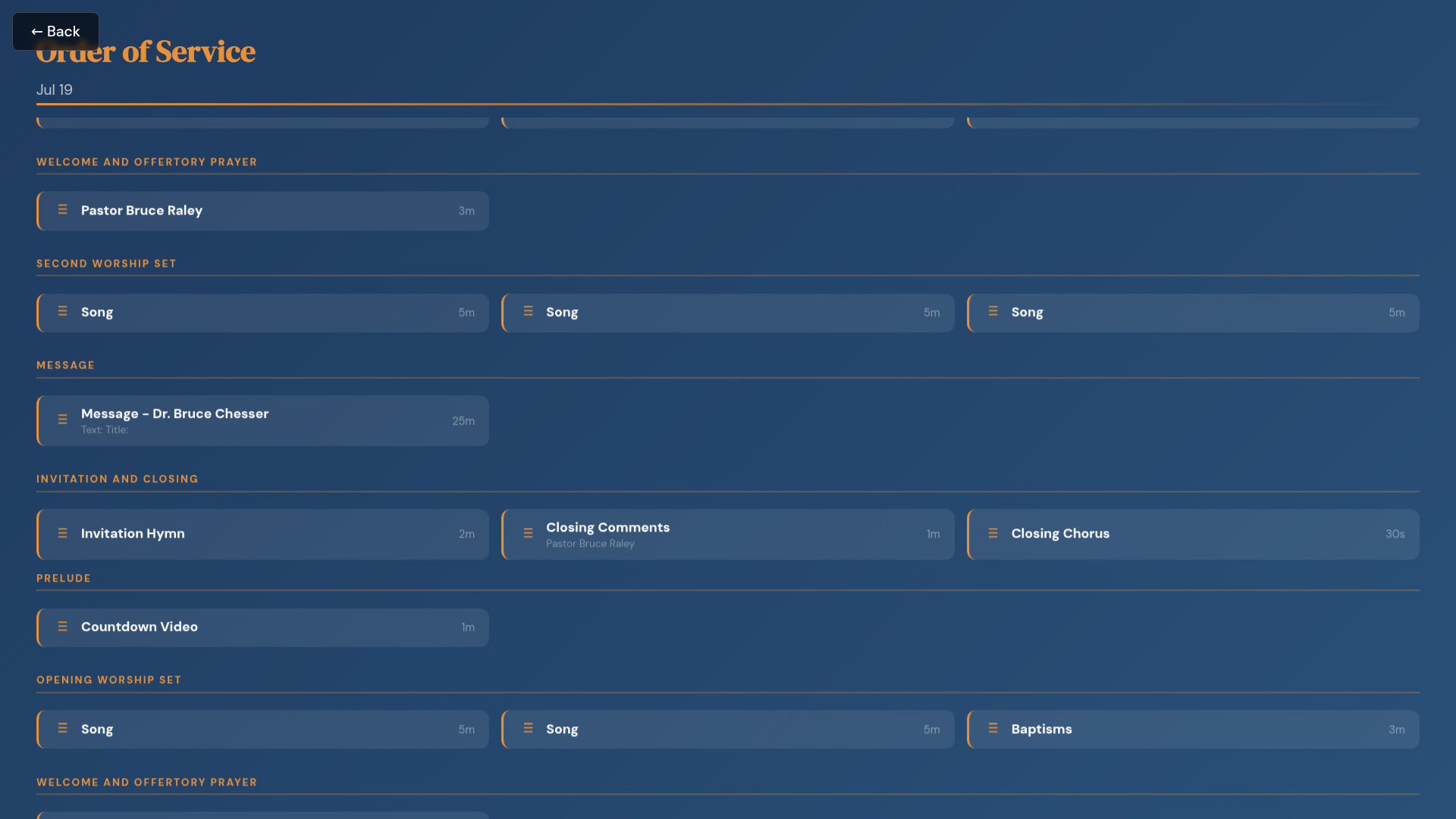
The worship team sees today's Order of Service from Planning Center. Songs, arrangements, durations, team assignments with photos. It refreshed five minutes ago. When the worship leader made a last-minute swap in Planning Center, the screen caught it automatically.

Planning Center order of service rendering natively on a backstage display
10:30 AM

Service starts. The lobby screens switch to the live stream.

Your BoxCast broadcast goes live. DisplayCache detects it and every lobby screen switches to the live stream automatically. The nursing mothers' room, the overflow room, the outdoor pavilion. All of them. No one touched a button. No one sent a text. It just happened.

11:45 AM

Service ends. Screens go back to announcements.

The broadcast stops. Every screen fades back to its regular playlist. The afternoon schedule shows updated room assignments. The birthday display cycles to the next person. Your volunteers are greeting people at the door, not running back to a laptop.

12:30 PM

The internet goes out

Someone tripped over the router cable. Every screen with cached content keeps playing: the announcement slides, the birthday display, the sermon series artwork, the room schedules. Uploaded images and videos live on the device, not in the cloud. YouTube or Vimeo streams would pause until the connection comes back, but your lobby slides never skip a beat.

Sunday school without the laptop cart

This is the problem nobody talks about in digital signage: how do you get curriculum content onto a screen in a classroom staffed by a volunteer?

The old way

Your children's ministry director downloads Lifeway slides to a laptop. Copies them to a flash drive. Carries a laptop cart to each classroom. Plugs in an HDMI cable. Hopes the projector input is set right. When something breaks, they text the IT guy, who's running sound in the sanctuary.

Multiply that by 80 classrooms. Four services. 3,000 people in Sunday school. Every Sunday.

With DisplayCache

Each classroom has an Apple TV, iPad, or Android tablet connected to its screen. The children's director uploads this week's Lifeway slides to DisplayCache once. Each classroom gets its own playlist. Age-graded, ready to go.

The volunteer teacher walks in, picks up the iPad, and taps through the lesson. No laptop. No HDMI cable. No IT support. If the Wi-Fi is slow that morning, it doesn't matter. The slides cached overnight.

And the screen does more than just curriculum. It pulls upcoming birthdays for the kids in that class from TouchPoint, and shows events relevant to that age group from eSPACE. The 3rd grade room advertises 3rd grade events. The youth room shows youth events. Nobody has to curate that per room. It just flows from what's already in your systems.

A 70-year-old Sunday school teacher who has never touched a computer can do this. That's not an exaggeration. That's who we built it for.

Bringing the service to the people who can't come to it

Some of your most faithful members can't make it to the building anymore. They're in nursing homes, assisted living, or homebound. They want to participate, not just watch a tiny stream on a phone they can barely see.

Our church has Apple TVs in 18 retirement centers. Every Sunday, residents gather in the activity room and the service goes live automatically. No one has to press a button, find the right app, or call for help. If they need to pause or rewind because someone missed what the pastor said, they can. When the broadcast ends, the screen goes right back to announcements and upcoming events.

But it's not just Sunday morning. During the week, residents can browse and play back past services, watch Bible study sessions, or enjoy listening and singing along to songs from the choir and orchestra. It gives them a connection to the church that goes far beyond a single hour on Sunday.

Between all of that, the screen shows church announcements, birthdays, photo slideshows, and upcoming events. It's a window into the church community for people who miss being part of it.

This is ministry, not technology. The technology just gets out of the way.
Not add-ons. Not bolted on. Built in.

Every system your church already uses feeds directly into your screens. No copy-pasting, no manual updates, no forgetting to change the birthday list on Monday. Microsoft 365 or Google Workspace — we work with both.

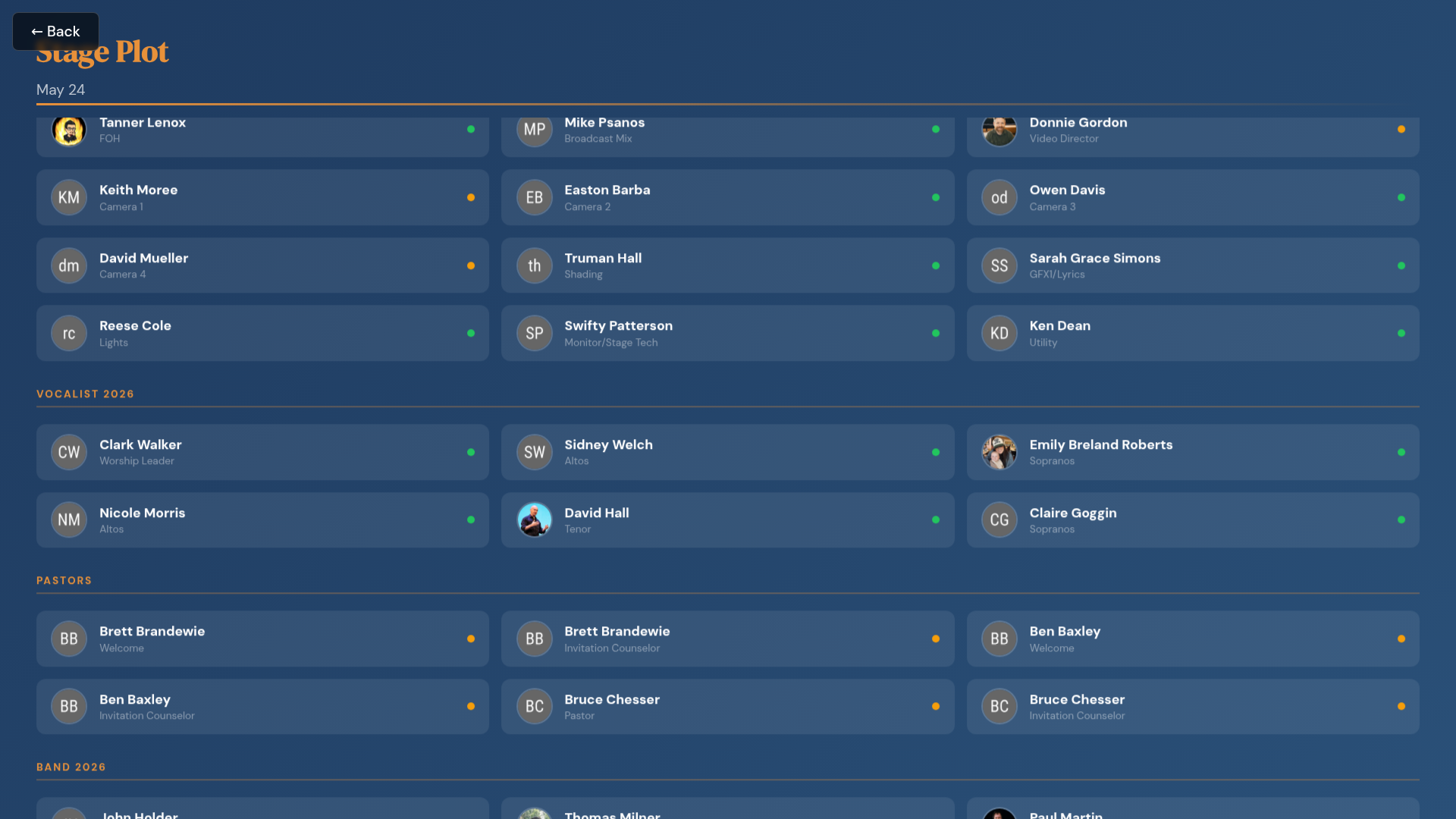
Planning Center stage plot and team photos on a green-room screen
Planning Center, rendered natively — not a screenshot of a website.
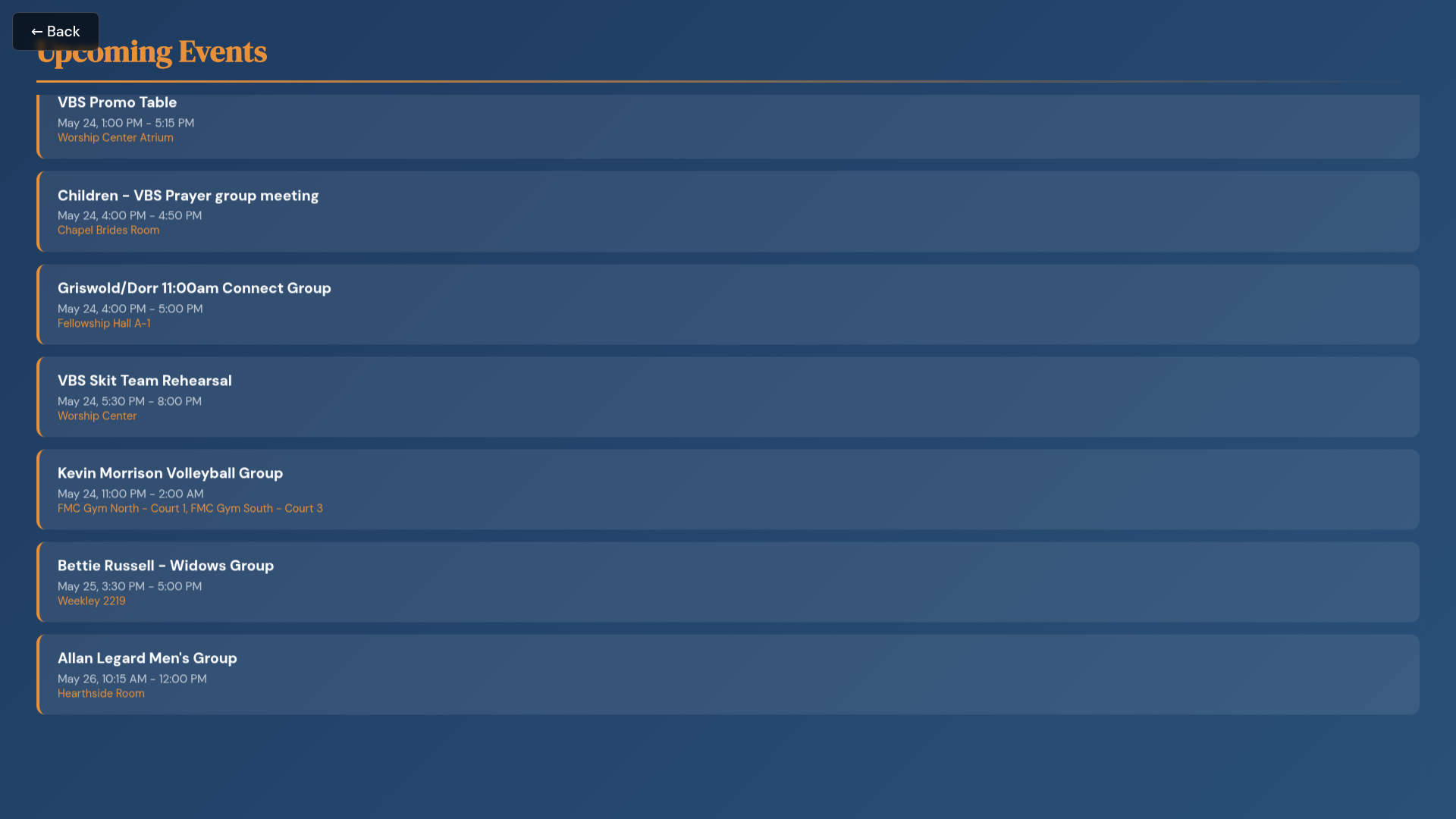
eSPACE room reservations alongside TouchPoint data on a hallway display
eSPACE room schedule next to TouchPoint data — one screen, two systems, zero manual updates.
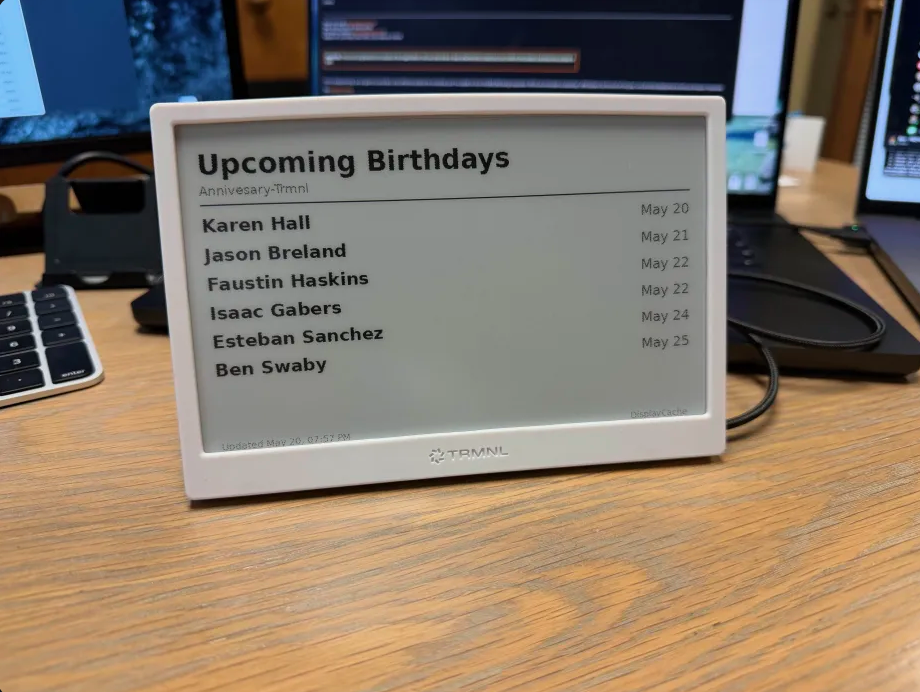
TRMNL e-ink display on a desk showing TouchPoint milestones from DisplayCache
Yes, even tiny e-ink desk displays. TRMNL pulls the same TouchPoint, eSPACE, and Planning Center data — no extra setup.
🎂

TouchPoint ChMS

Birthdays with member photos, milestone celebrations, volunteer schedules, custom script data. Anything TouchPoint can query, DisplayCache can display. Choose from cards, tables, grids, bulletins, or room schedule formats. Multiple size and column layout options. The data is live and rendered natively on screen. The photos proxy automatically.

📅

eSPACE Events

Room schedules and event listings filtered by location. Mount a screen outside a room and it shows availability, current event, and what's coming next. The lobby shows everything. Choose event list or room schedule format with configurable time windows, max event counts, and multi-column layouts. Set it once.

🎨

Canva

Your office manager designs announcement slides in Canva. She clicks import in DisplayCache. Import the whole design or pick a single page. The slides land in the right playlist. No downloading, no re-uploading, no emailing files to the "tech person."

YouTube & Vimeo

Paste a sermon playlist or channel URL. It plays natively with full seek controls. New uploads appear on screens automatically. Trim start and end points on any video. No manual updates, no managing files.

📂

Google Drive

Sync a Google Drive folder to your content library. Drop new images or slides into the shared folder and they show up on screens automatically. Sort by name or date, with a 200-file limit per folder to keep things manageable.

OneDrive, SharePoint & Teams

Sync folders from OneDrive, SharePoint document libraries, or Teams channel files. PowerPoint and Word files are automatically converted to images for display — no manual exporting. Connect a Teams channel and its files flow straight to your screens. Perfect for churches on Microsoft 365.

Weather & Clock Overlays

Smart Display widgets that layer live weather and time over any background. Position and size each widget wherever you want on screen. Because every lobby screen needs a clock, and your greeters always get asked about the weather.

View detailed integration guides →

Manage dozens of screens without losing your mind

One web admin, no training manual.

📺

Device Dashboard

See what every screen is playing right now. Set on/off schedules, kiosk-lock devices, pull live screenshots and diagnostics — from one page.

🔒

Folder & Playlist Permissions

The children's director only sees children's content. The youth pastor only sees youth playlists. Set it inline, no settings-menu safari.

🖐

Interactive Content

Long lists auto-scroll, but viewers can grab the remote, pause, and browse at their own pace. Auto-resume kicks back in when they stop.

Features your production team will actually use

Synchronized playback, NDI video output, and portrait mode. Built for churches that take their screens seriously.

📱

Portrait & Vertical Displays

Mount a TV sideways for a hallway directory, a tall menu board, or a vertical event schedule. Set the rotation in the web admin and the content flips to match. Supports 90°, 180°, and 270° rotation on all device types. No physical remote needed, no digging through TV settings menus.

The presentation software your church can actually afford

ProPresenter is $499. Your church has three volunteers who run the screens on rotation. You don't need a $500 tool nobody knows how to use. You need something that works like a video editor's playback controls but is simple enough for the youth pastor to figure out in five minutes.

The DisplayCache macOS app is that tool.

  • Dual-screen output. Your laptop shows the control window. The projector or lobby TV shows what the congregation sees. Drag the output window to any connected display.
  • Confidence monitor. Live frame grabs from the output screen, right in your control window. You always know exactly what's on screen without turning around.
  • Playback queue. Load your sermon slides, worship backgrounds, and announcement loop into a queue. Advance when you're ready. Reorder on the fly.
  • J/K/L shuttle controls. Professional speed control for video: reverse, play, fast-forward at variable speeds. Your media team volunteers will feel right at home.
  • Content bridge to ProPresenter. Your comms team uploads slides and videos to DisplayCache. The media team finds them in ProPresenter automatically. Set a watched folder once and every playlist syncs on its own.
  • No separate license. This is included. Same $10/display. No surprise upgrade path.
DisplayCache Broadcast Control
LIVE OUTPUT
Welcome to Sunday Service
QUEUE
Announcements
Worship Set
Sermon Slides
Closing

Already using ProPresenter? Keep using it.

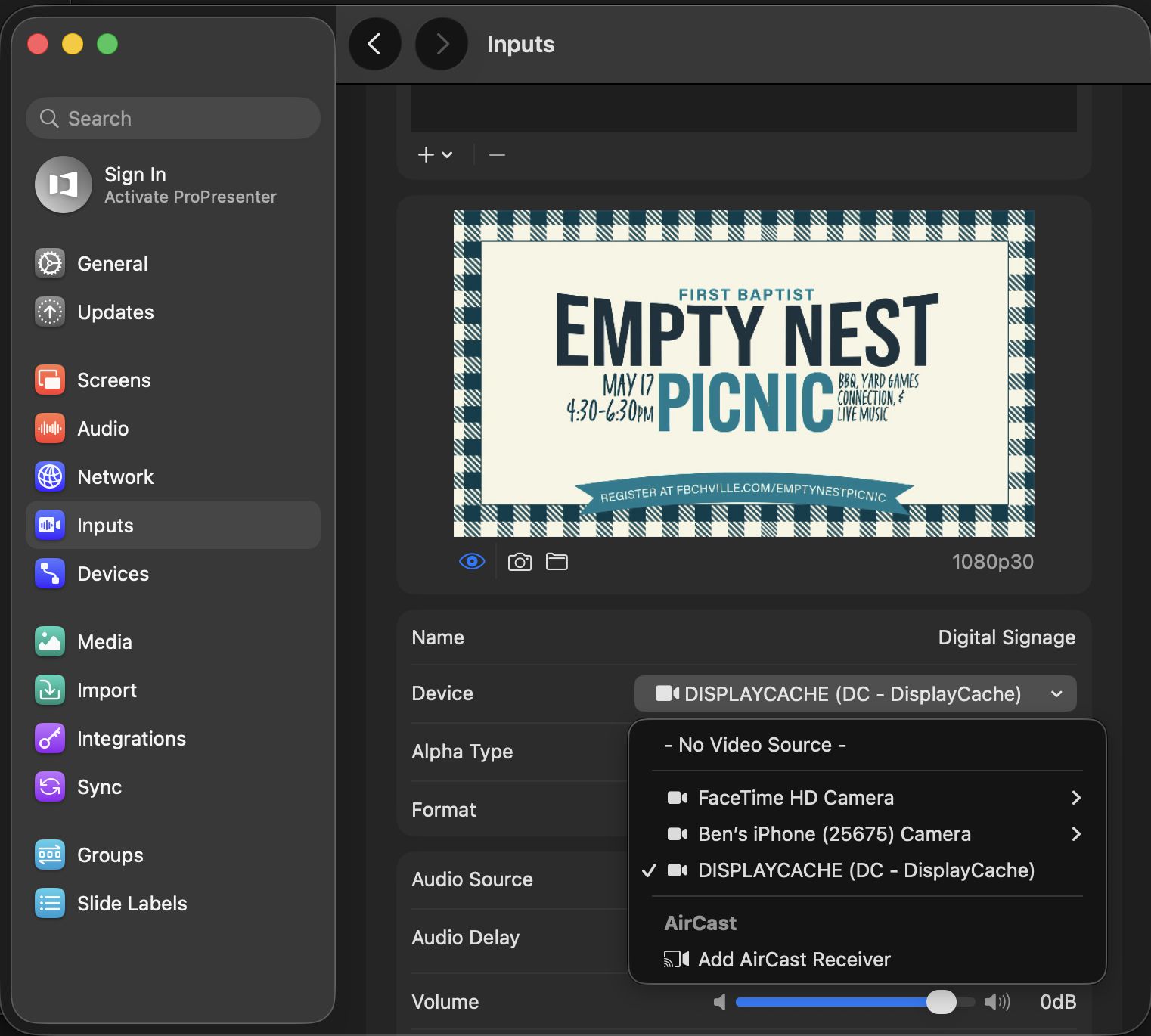
DisplayCache works alongside ProPresenter two ways. NDI output: any Intel NUC running DisplayCache broadcasts its screen as an NDI source on your network — ProPresenter picks it up like any other video input. File sync: the macOS app syncs slides and videos into a ProPresenter watched folder so your comms team uploads once and ProPresenter picks them up. No downloading, no flash drives, no duplicate work.

DisplayCache showing up as an NDI source inside ProPresenter's input list

An Intel NUC running DisplayCache appears as an NDI source inside ProPresenter — no plugin, no driver, no extra software.

Offline by design, not by accident

Images, slides, uploaded videos, and Canva imports all live on the device. Playlists download overnight. When Sunday morning comes, your screens don't need the internet to play cached content. YouTube, Vimeo, and live streams do need a connection, but everything else keeps running even if the Wi-Fi goes down.

Runs on what you already own

Apple TV in the lobby? iPad in the classroom? Fire TV Stick on the wall? Mac at the sound booth? Raspberry Pi on the bulletin board? Use them. A $60 Fire TV Stick 4K Max or a $45 Raspberry Pi 4 plugs into any TV with HDMI and runs DisplayCache out of the box. No $500 media players. No proprietary hardware.

Set up in one coffee break

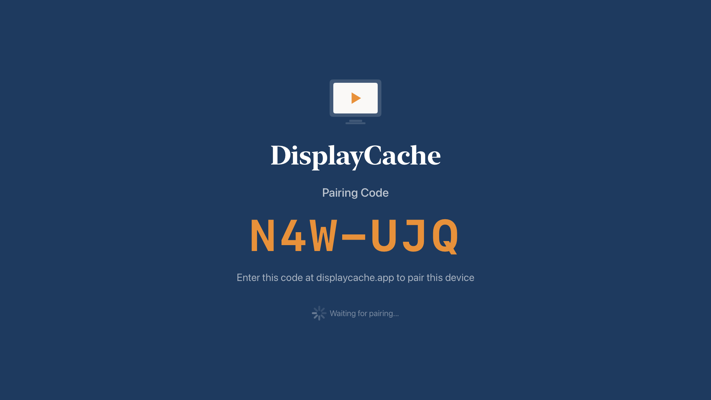
Install the app. A 6-character code appears on screen. Type it into the web admin. Assign a playlist. That's it. You can do this from your phone in the parking lot. No config files, no network setup, no training manual.

6-character pairing code displayed on a new DisplayCache device awaiting setup

One price. Everything included.

No tiers. No feature gates. No per-integration fees. No "contact sales for enterprise." Every display gets everything.

$10/display/mo

Every feature. Every integration. Every device type.

Join the Waitlist

For context

Yodeck
$8–15/screen
No church integrations. No offline caching. No broadcast control.
DisplayCache
$10/screen
Apple TV, iPad, Mac, Android TV, Android tablets, Raspberry Pi, Intel NUC. Every integration including OneDrive & SharePoint. Offline. Broadcast control. Classrooms.
Playlister
$19–25/screen
Apple TV only. Good streaming, but no ChMS integrations, no broadcast control room.

One platform. Every screen in the building.

From the lobby to the classroom to the retirement center. Pick the hardware that fits the room and the budget.

Apple TV

The lobby workhorse. Offline-first caching, BoxCast live stream auto-switching, and AirPlay when you need it. Plug in, pair with a 6-character code, done.

From $129
Download on the App Store

iPad

In Review

Perfect for classrooms. Teachers tap through curriculum slides. Doubles as a kiosk for check-in, directories, or wayfinding. Touch interaction built in.

From $329

Mac

Coming Soon

Broadcast control room. Dual-screen output, confidence monitor, J/K/L shuttle controls. Also works as a standalone player for large displays.

From $599
🤖

Android TV

Q3 2026

The most affordable smart TV option. Native Android app with offline caching, kiosk mode lockdown, and auto-updates from the Play Store. Works on any Android TV device, Chromecast with Google TV, or smart TV with Android built in.

From $30
🤖

Android Tablet

Q3 2026

A low-cost alternative to iPad for classrooms, kiosks, and hallway displays. Touch interaction for browse mode and curriculum walkthroughs. Native Android app with offline caching and remote management.

From $80

Intel NUC

When you need more power. 4K video, hardware decode, Intel VA-API acceleration, and NDI output for production switchers. Same automatic setup and over-the-air updates as Pi. Compatible with NUC5 through NUC14 and most x86 mini PCs.

From $200
Setup guide →

TRMNL & E-Ink

Always-on e-ink displays for hallway signs, room schedules, and bulletin boards. Zero power draw, paper-like readability, perfect for room availability and static info that doesn't need video or animation. Available now — powered by TRMNL.

From $139
$5/mo — static content only
🔥

Amazon Fire TV Stick 4K Max

The cheapest way to get a signage screen on any TV. Native Fire OS app with offline caching, automatic updates, and optional kiosk mode lockdown. Recommend the 4K Max for its 16 GB storage (twice the base 4K Stick) and Wi-Fi 6. Best for images, slides, and uploaded MP4s — YouTube and live-stream embeds are not recommended on Fire Stick hardware.

From $60
Setup guide →
Compare all players & features →

NDI output, rotation, CEC power control, 4K — see what each player supports.

Common questions

What happens when the internet goes out?

Uploaded images, videos, Canva imports, and slides keep playing. They're cached on the device. Integration data (birthdays, schedules, order of service) shows the last-fetched version. YouTube, Vimeo, and live streams (BoxCast) will pause until the connection returns since they stream in real time. For most churches, the majority of playlist content is uploaded media, so screens stay running through an outage.

What content works offline and what needs internet?
Content TypeWorks Offline?
Images, slides, uploaded videosYes — cached on device
Canva importsYes — exported as images
Google Drive & OneDrive synced filesYes — downloaded to device
Planning Center, TouchPoint, eSPACE dataYes — last-fetched data persists
WeatherYes — shows last-fetched forecast
YouTube & Vimeo videosNo — streams in real time
BoxCast live streamsNo — requires internet
Smart Display live widgetsPartial — cached data, live updates need connection
Which devices does DisplayCache run on?

Apple TV (4K, HD), iPad, Mac, Android TV, Android tablets, Raspberry Pi 4/5, Intel NUC, Amazon Fire TV Stick 4K Max, and TRMNL e-ink displays. Apple devices run native Swift apps from the App Store. Android devices (including Fire TV Stick) run a native Android app with offline caching, kiosk mode, and auto-updates. Linux devices (Pi and NUC) run a Chromium kiosk with a local agent that handles caching, CEC power control, and automatic updates. TRMNL e-ink displays render static content via a hosted plugin.

How does the Raspberry Pi work?

Flash our pre-built image to an SD card using Raspberry Pi Imager. Insert it, connect HDMI and ethernet (or Wi-Fi), and power on. A 6-character pairing code appears on screen. Enter it in the web admin and assign a playlist. The Pi caches content locally, manages its own updates, and can turn the TV on and off on a schedule via HDMI-CEC. Total cost: about $45-60 for the Pi 4 or 5 plus an SD card.

Do I need a computer to set things up?

No. The web admin runs on any browser, including your phone. Plug in a device, type the pairing code, assign a playlist. You can do this from the parking lot.

Can I import designs from Canva?

Yes. Connect your Canva account, browse your designs, and import them directly. Import an entire multi-page design as a slideshow or pick individual pages. The slides land in your playlist without downloading, converting, or emailing files around.

How do YouTube and Vimeo videos work?

Paste any YouTube or Vimeo URL: individual videos, playlists, or channels. Videos play natively with full seek controls. You can trim start and end points on any video. For playlists and channels, new uploads appear on your screens automatically.

What church management systems do you integrate with?

Planning Center (Services), TouchPoint ChMS, eSPACE (room & event scheduling), BoxCast (live streaming), Google Drive, OneDrive/SharePoint/Teams, and Canva. These are deep integrations, not embeds. Planning Center shows your order of service and stage plots with team photos. TouchPoint displays birthdays, milestones, volunteer schedules, and custom data in multiple formats (cards, tables, grids, timelines, rosters). eSPACE shows room schedules with availability status or scrolling event lists, filtered by location. BoxCast auto-switches screens when a broadcast goes live. Google Drive, OneDrive, and SharePoint sync folders directly to your content library — PowerPoint and Word files are automatically converted to PDF.

How much does it cost?

$10 per display per month. Every feature, every integration, every device type. No tiers, no feature gates, no "contact sales." E-ink displays (TRMNL) are $5/month since they only support static content. We're finishing up final testing and will offer a free trial when we launch.

Can screens show different content based on where they are?

Yes. Assign each device to a location and device group. Content can be filtered so the screen outside the fellowship hall shows fellowship hall events, the youth room shows youth events, and the main lobby shows everything. You set this up once and it flows automatically from your calendar system.

Can I schedule content to appear only on certain dates?

Yes. Any content item or playlist can have start and end dates. VBS announcement slides can be set to appear two weeks before the event and disappear the day after. No manual cleanup needed.

Do devices update automatically?

Apple devices update through the App Store. Android devices update through the Play Store. Linux devices (Raspberry Pi and Intel NUC) update automatically over the air. The agent checks for updates, downloads them, and restarts. No SSH, no manual intervention.

Can the Raspberry Pi turn the TV on and off automatically?

Yes. If your TV supports HDMI-CEC (most do), the Pi can power the TV on and off on a schedule. Set it to turn on at 7 AM and off at 10 PM, Monday through Sunday. No smart plugs, no IR blasters, no timers.

Can I sync multiple screens to show the same content at the same time?

Yes. Enable sync playback on a playlist and every device playing that playlist will show the same slide at the same time. Each device syncs independently to the clock — no master device, no special network setup. Works across Apple TV, Android, Raspberry Pi, and Intel NUC. Add a new screen to the playlist and it locks into sync automatically.

Does DisplayCache support vertical or portrait-oriented displays?

Yes. Set the rotation (90°, 180°, or 270°) from the web admin and the content flips to match. No need to dig through your TV's settings menu or mount a separate media player upside down. Works on all device types.

What is NDI output and do I need it?

NDI (Network Device Interface) lets your signage screen appear as a video source on your production network. If your church uses a video switcher like an ATEM, vMix, or OBS, you can pull your DisplayCache content directly into your broadcast without a capture card or extra HDMI run. It's available on Intel NUC devices. If you don't have a production switcher, you don't need it — your screens work the same without it.

Can I test updates before they roll out to all my devices?

Yes. You can put individual devices on a beta update channel to receive new features and fixes early. Once you've verified everything works, the update rolls out to the rest of your devices on the stable channel. This is managed per-device from the web admin.

Which Intel NUC models are supported?

The Intel NUC installer is a standard Ubuntu Server 24.04 image with Intel VA-API hardware video acceleration. It should work on any Intel NUC with UEFI boot and HDMI output:

ModelCPU GenerationYear
NUC5 (Broadwell)5th Gen2015
NUC6 (Skylake)6th Gen2016
NUC7 (Kaby Lake)7th Gen2017
NUC8 (Coffee Lake)8th Gen2018
NUC10 (Frost Canyon)10th Gen2020
NUC11 (Tiger Canyon)11th Gen2021
NUC12/13 (Wall St Canyon)12th/13th Gen2022–23
ASUS NUC 1414th Gen2024

It also works on most x86 mini PCs (Beelink, MinisForum, Lenovo ThinkCentre Tiny). AMD mini PCs will work but fall back to software video decode instead of Intel hardware acceleration.

Built by a church, for churches

DisplayCache started because our church (80 classrooms, 4 worship services, 4,000 people on a Sunday) needed this and nothing out there did all of it. We're finishing up final testing and will be opening access soon.

Join the waitlist and we'll let you know when it's ready.

We'll only email you when DisplayCache is ready. No spam.